
How to add an event to Google Calendar: clear steps
A practical, reader-focused guide on adding events to Google Calendar, with a Dudley news context and easy, actionable steps for users.

If you want to add an event to Google Calendar, start by opening the app or website and selecting the date. You’ll create a new event, fill in the title, time, and location, then save it to your calendar. This guide translates those steps into practical actions you can apply when planning coverage or personal scheduling around Dudley events.
This article explains each step with concrete examples, plus tips for avoiding common mistakes. It also shows how to share events or invite participants, which can be useful when coordinating news coverage or community calendars. Read on for a reliable, plain‑language walkthrough that fits real newsroom needs.
The goal is to help readers manage events efficiently without ambiguity. It covers basic setup, calendar visibility, and practical pitfalls to avoid so you can rely on Google Calendar in busy reporting days. Expect clear instructions you can follow immediately.
- This guide explains how to add an event to Google Calendar with clear, practical steps for readers.
- It covers basic setup, device differences, and how to manage recurring events without confusion.
- Special sections address common mistakes and newsroom-friendly tips for Dudley readers.
Basics of calendar setup
Create a new event
Open Google Calendar and click or tap Create to start a new entry. Enter a descriptive title that makes the event easy to identify at a glance. Set the date and time, including any duration and time zone if relevant. add an event to the Dudley events calendar is a direct action readers can perform within Google Calendar.
The next step is choosing a calendar if you have more than one. If you’re coordinating Dudley news coverage, consider using a dedicated calendar to keep events separate from personal ones.
Finally, save the event and verify the details appear on the correct day. If you work with others, add guests and adjust permissions so they can RSVP.
Share and view options
After saving, open the event to adjust guest permissions and add a description or attachments. This makes it easier for colleagues to understand the context or what to prepare.
Review who can see the event in your calendar settings. In a newsroom context, you may want broader visibility for staffers or restricted access for editors.
Test the notification settings to ensure reminders arrive at the right time, helping you meet deadlines or confirm press invitations.
- Invite colleagues by email
- Attach a brief agenda or link
- Set reminders for teammates
- Review sharing settings before publishing
How to add from different devices
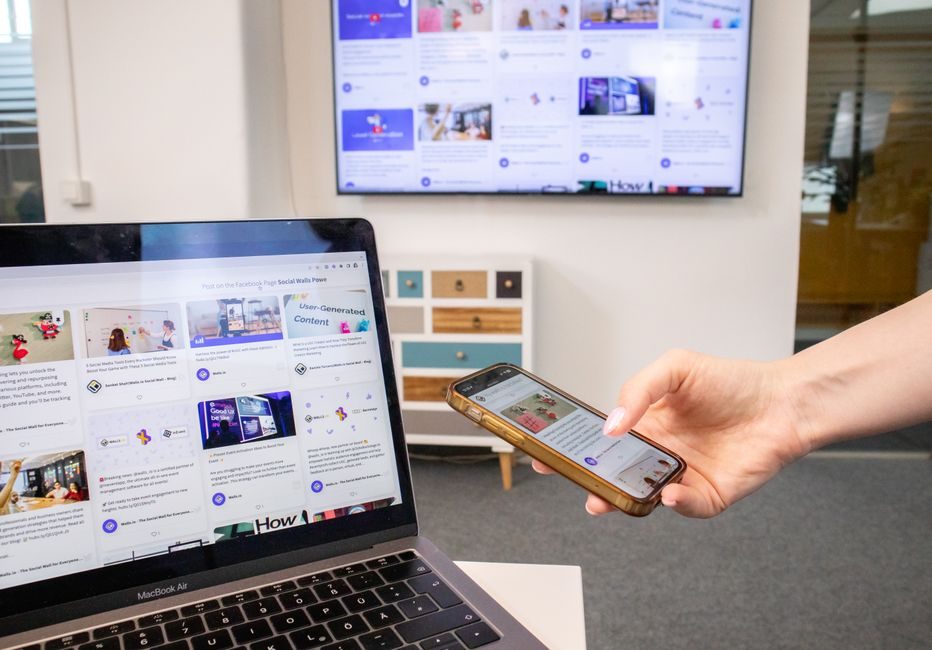
Using mobile apps
Open the Google Calendar app and tap the plus sign to create an event. Mobile entry should mirror desktop details for consistency. Dudley 24 latest news can be followed through timely calendar updates that reflect newsroom activity.
- ☐ Ensure correct calendar is selected
- ☐ Use location autocomplete
- ☐ Enable push notifications
Fill in the essential fields: title, time, location, and notes. Use the search tool to find locations or video links quickly.
Save and confirm the event appears on the correct calendar and time zone. Mobile alerts can help you stay on schedule when on the go.
- Start from the day view for quick entry
- Use location suggestions
- Check time zone if traveling
- Sync with other calendars
Using web and desktop apps
On a computer, open calendar.google.com and click Create in the upper left. Desktop entry can include more fields, like conferencing links and color labels.
Fill in date, time, location, description, and guests. You can also attach a file or add a Google Meet link for remote participation.
Review guest permissions and save. Desktop views often show additional options such as recurring events or reminders.
- Use keyboard shortcuts like c to create
- Add conferencing links
- Set up repeat schedules if needed
- Adjust calendar color coding
Options for recurring events
Single vs. recurring
A single event covers one instance, while a recurring event repeats on a set pattern. For a weekly Dudley beat meeting, set a weekly recurrence with a specific end date or an ongoing schedule. list your business in Dudley becomes easier when calendar entries are clearly labeled and publicly visible.
Recurring events keep teams aligned without re‑entering the same details. They are useful for press briefings or community updates that happen regularly.
Always verify exceptions when a recurrence deviates due to a holiday or special edition.
- Choose weekly, monthly, or custom patterns
- Set end date or never end
- Add exceptions for holidays
- Review reminders for each instance
| Method | Pros | Cons |
|---|---|---|
| Single event | Simple and fast | Needs re-entry for repeats |
| Recurring event | Keeps schedule consistent | Requires management of exceptions |
| With conferencing | Adds accessibility | Requires link maintenance |
Managing updates
If a recurring event changes time or location, update all instances or create an exception for the affected dates. Communicate the change to participants so no one misses the update.
Use the notification system to alert attendees of changes, especially when news schedules shift.
Document changes in the event description to maintain a record for readers or staff.
- Edit entire series or single occurrences
- Notify attendees of changes
- Keep a clear event history
If you’re unsure, compare the calendar time with your device’s clock and set the event time to a fixed reference.
Pitfalls to avoid

Time zone mistakes
Always check the time zone when you create an event, especially if it involves remote participants or field reporters. A mismatch can lead to missed meetings or press briefings. Dudley classified ads benefit from well-organized calendar entities that improve reader visibility.
If you’re unsure, compare the calendar time with your device’s clock and set the event time to a fixed reference. Time zones are easy to misread in busy days.
Revisit times before sending invites to avoid confusion and ensure everyone arrives on schedule.
- Check time zone explicitly
- Use a fixed reference time
- Reconfirm before inviting
Busy schedules
Avoid overloading a single event with multiple topics; use separate entries for distinct items like meetings and field coverage. This helps attendees focus and reduces confusion.
If your calendar is crowded, color-code events by type and set distinct reminders for critical tasks.
Review the calendar weekly to spot clashes and adjust as needed.
- Separate topics into events
- Color-code for clarity
- Set essential reminders
- Review regularly
Advanced calendar integrations
Sync with external calendars
Many teams rely on external calendars to keep events in one place. This means checking how Google Calendar can share data with other systems like mail clients or project tools. Start by identifying your primary calendar to avoid duplicate events and conflicting times. online obituaries in Dudley
If you use multiple calendars, look for a single view that combines them. This reduces the chance of missed events and helps newsroom staff coordinate on deadline days. Test synchronization with a single event before scheduling a full sequence.
For recurring workflows, consider automatic updates when the source calendar changes. This keeps the Dudley events calendar current if an event moves or is canceled, without manual edits.
- Test sync with one event
- Set default reminders for teams
- Use read-only feeds for public calendars
Accessibility and inclusivity in calendars

Inclusive event details
Event listings should use clear language, avoid jargon, and include accessibility details such as venue accessibility, captioning, and transportation options. This helps a wider audience plan their participation.
- Ensure event descriptions use simple language; include a contact option for questions.
- Provide accessibility notes in every event listing to support diverse readers.
Provide alternative formats for event descriptions, like concise summaries or plain text versions, so readers on assistive devices can access essential information. Always include contact options for further questions.
Consider color choices and font sizes that are readable for most users. Use high-contrast visuals and 14-point minimum font sizes to aid readability across devices.
Security and privacy considerations
Managing public vs private events
Public events should include only necessary details to protect participants’ privacy. Avoid sharing personal contact information in listings and rely on official contact channels.
Private or internal events require restricted access, so confirm who can see the event and whether the calendar needs password protection or invitation-only access.
Review who has editing privileges on the Dudley events calendar to reduce the chance of accidental changes and leaks.
- Limit personal data in event descriptions
- Use invitation controls for sensitive events
- Regularly audit editor permissions
Final checks and newsroom workflows

Quality control before publishing
Before a calendar publish, verify basic facts: event title, date, time, location, and contact details. A quick cross-check against the source helps prevent miscommunication with readers.
Run a last-minute scan for broken links or missing fields that readers might need, such as a map or RSVP method. Use a standard checklist to streamline this common step.
Coordinate with the copy desk to ensure the calendar entry aligns with the newsroom's overall style guide and current events coverage.
- Run a pre-publish checklist
- Confirm time zones across events
- Verify contact information
Frequently asked questions
Can I import event data from other calendars into Google Calendar?Yes. Many readers will want to bring in events from external calendars. The process usually involves exporting a standard file and then importing it into Google Calendar, or using an online sync option if supported by the calendar service. Ensure the import keeps time zone accuracy and event details intact.
How do I share a calendar publicly without exposing sensitive information?Use the public sharing settings to control visibility. Publish only non-sensitive fields and provide a contact channel for readers who need more details. Regularly review what information is publicly visible to prevent accidental leakage.
What should I do if an event is canceled after it’s posted?Edit the event to reflect the cancellation and add a brief note explaining the change. If the site supports it, mark the event as canceled in a way that keeps readers from trying to RSVP. Communicate updates through a separate newsroom note when needed.
Are there accessibility features I should verify for calendar posts?Check that event descriptions use simple language and include essential accessibility details. Ensure the calendar is navigable with screen readers and that color contrasts meet readability standards. Provide a text alternative for key information.
The calendar page should be a reliable, ready-to-use resource for readers seeking local events. Clear, precise entries and consistent formatting are essential to maintain trust.
newsroom workflow improvements can reduce errors and speed up publication: assign roles, use a checklist, and document changes in a quick newsroom note. The result is a calendar readers can rely on during breaking news days and ordinary planning alike.
Add Duxbury MA News as a preferred source on Google


